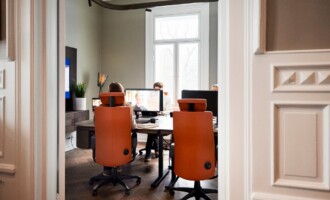
When it comes to multi-monitor workstations, facilities managers and office decision-makers know the stakes are high. Get it right and your teams work faster, more comfortably, and stay healthier over the long term. Get it wrong, and you risk productivity dips, ongoing discomfort, and a steady stream of support tickets.
Multiple screens can significantly boost productivity by enabling seamless multitasking, easier cross-referencing, and more immersive workflows. However, they also introduce ergonomic challenges such as awkward viewing angles, frequent neck rotation, deep reaches, and cable clutter. Over time, these issues can contribute to repetitive strain injury, musculoskeletal disorders, and eye strain.
As multi-monitor workstations become standard for finance, creative, support, and project teams, it is essential to move away from a “just squeeze it in” mindset and towards a well-considered ergonomic design.
Key Ergonomic Principles for Multi-Monitor Workstations
- Alignment: The primary monitor should sit directly in front of the user, with additional screens positioned at comfortable viewing angles.
- Distance: Monitors should be approximately an arm’s length away, with the top of the screen at or just below eye level.
- Posture: Desk height, chair support, and accessory placement should encourage an upright, relaxed posture.
- Adjustability: The ability to fine-tune height, depth, and angle is essential, particularly in shared or hot-desking environments.
- Minimising reach: Keyboards, mice, and document holders should be positioned so users never need to over-extend.
1. Adjustable Monitor Arms for Flexible Positioning
One of the most impactful ergonomic upgrades for multi-monitor environments is a high-quality adjustable monitor arm. These allow users to position screens precisely to suit their individual needs, including height, depth, tilt, and rotation. The result is reduced neck strain, easier collaboration, and quick adjustments when users change desks or tasks.
For dual or triple screen setups, choose arms with excellent stability that can support the weight of multiple monitors while allowing side-by-side placement. Built-in cable management is also important, as a tidy desk supports focus as much as comfort.
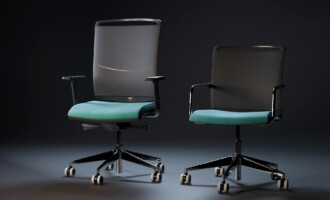
2. Ergonomic Office Chairs: The Foundation of Comfort
No workstation upgrade is complete without a supportive, adjustable chair. In multi-monitor environments, users tend to swivel and shift more frequently, which places extra demands on seating. An ergonomic chair supports movement, encourages good posture, and reduces fatigue during long periods of screen-based work.
3. Keyboard and Mouse Placement: Close, Aligned, and Supported
Reaching forward or sideways to use a keyboard or mouse is one of the fastest ways to develop RSI or shoulder strain. An effective setup should:
- Keep the keyboard directly in front of the primary monitor
- Allow elbows to rest at approximately 90 degrees
- Maintain straight, neutral wrists
An ergonomic mouse can further improve comfort. For users switching between screens regularly, ensure the mouse remains close to the keyboard and is not positioned unnaturally to one side.
4. Document Holders: Reducing Neck and Eye Strain
Where staff regularly reference documents alongside multiple screens, an adjustable document holder is essential. Positioning it between the keyboard and monitor, or directly beside the primary screen, reduces repetitive head and eye movements.
5. Laptop Stands and Risers for Hybrid Setups
Many multi-monitor workstations combine a laptop with one or more external screens. A robust laptop riser ensures the laptop screen is raised to the correct height, reducing downward neck posture and helping align it with other displays.
Laptops should never be used flat on the desk for extended periods. Pairing a riser with a separate keyboard and mouse is essential for proper ergonomic support.
6. Footrests: Supporting Feet and Improving Circulation
Even with a well-adjusted chair, some users require additional support to ensure their feet rest flat and their hips are correctly positioned. This is particularly common where desk heights are fixed and cannot be individually adjusted.
An adjustable footrest helps maintain healthy circulation and prevents legs from dangling, which is more common at shared desks than many people realise.
7. Power and Cable Management: Safety and Simplicity
Multi-monitor desks can quickly become cluttered with cables, chargers, and extension leads. This creates trip hazards, makes cleaning harder, and frustrates users who cannot easily access power.
On-desk power modules with USB charging reduce clutter and keep power within easy reach.
Common Mistakes to Avoid
- Mounting monitors too high, which forces neck extension and discomfort
- Ignoring left or right-hand bias, especially in hot-desking environments
- Assuming all staff need identical equipment, when individual needs vary
- Using bulky monitor stands instead of adjustable arms, which limits flexibility
- Neglecting training and setup, as even the best equipment needs correct adjustment
We always recommend professional DSE assessments alongside any workstation upgrade.
Additional Ergonomic Upgrades
- Height-adjustable desks: Sit-stand desks allow users to vary posture throughout the day whilst maintaining their work duties, reducing fatigue and supporting long-term wellbeing.
- Specialist seating: Some users require chairs designed for medical needs, bariatric use, or 24-hour environments. These should always be specified based on individual requirements.
Our Best Practice Framework
- Audit: Start with a professional DSE assessment to understand user needs and workspace constraints
- Prioritise: Address core elements such as chair, monitor, and desk setup first
- Customise: Account for handedness, shared workstations, and job-specific tasks
- Engage: Train staff to make simple adjustments and manage posture and screen time
- Review: Reassess as teams, technology, and working patterns evolve
Improving multi-monitor workstations does not require a complete overhaul. Often, small, targeted upgrades such as better monitor arms, supportive seating, and smarter accessories make the biggest difference when implemented with real users in mind.
At Posture People, we see the impact first-hand. Healthier staff, fewer aches and pains, reduced absence, and more engaged teams.
If you are ready to optimise your multi-screen workstations, explore our ergonomic solutions or get in touch to arrange a personalised DSE assessment. Your people spend thousands of hours at their desks every year. Let’s make every hour count.